Master the Canvas Editor - Create Professional Product Mockups
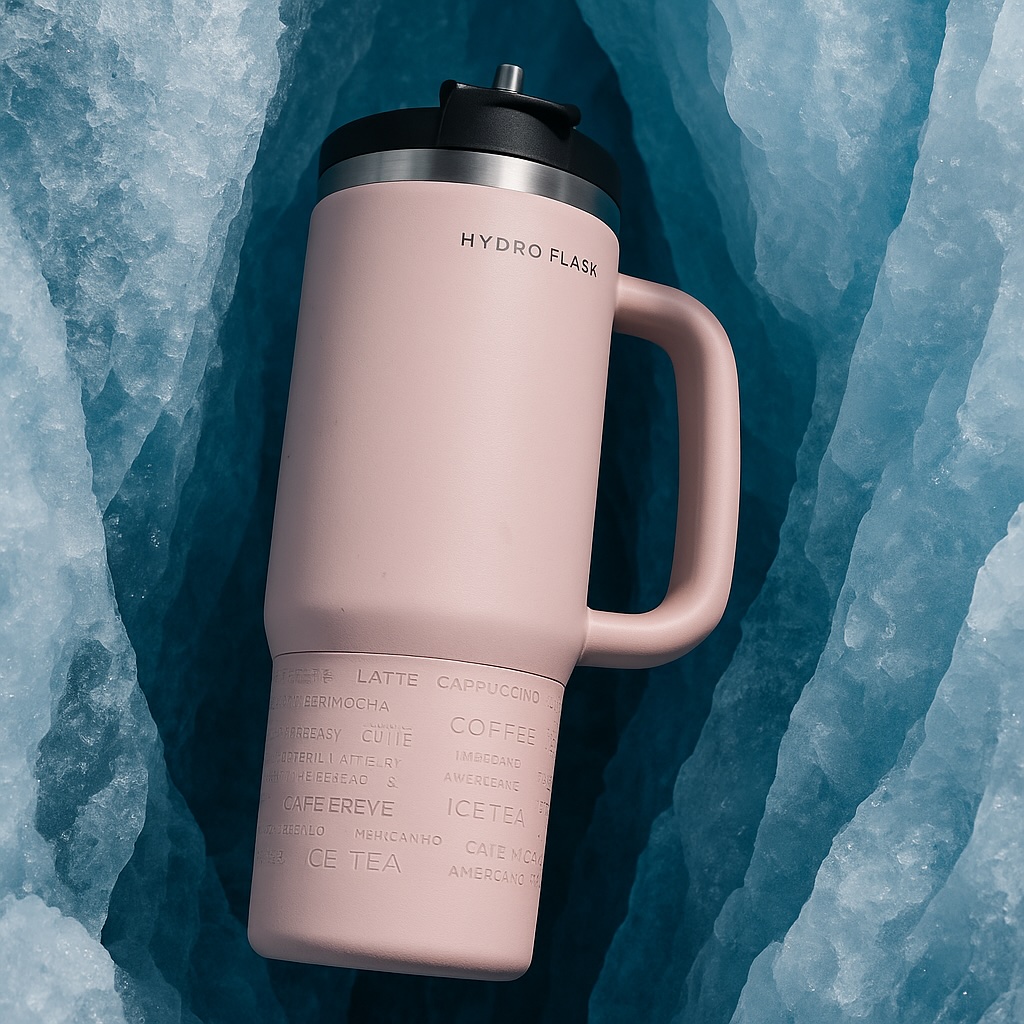
Your Creative Powerhouse: A Guide to the Canvas Editor
What if you had one place to take your images to the next level? A digital canvas where you can enhance, animate, and perfect your visuals with just a few clicks.
Welcome to the Canvas Editor by SnapMyDesign—your new all-in-one toolkit for creating stunning, professional-grade content.
✨ What is the Canvas Editor?
The Canvas Editor is a versatile workspace designed to give you more creative power. It's not just about generating content; it's about refining it. Currently, the editor comes packed with two powerful tools: Video Generation and an AI Upscaler, with more on the way!
Let's dive into what you can do.
🚀 How to Get Started
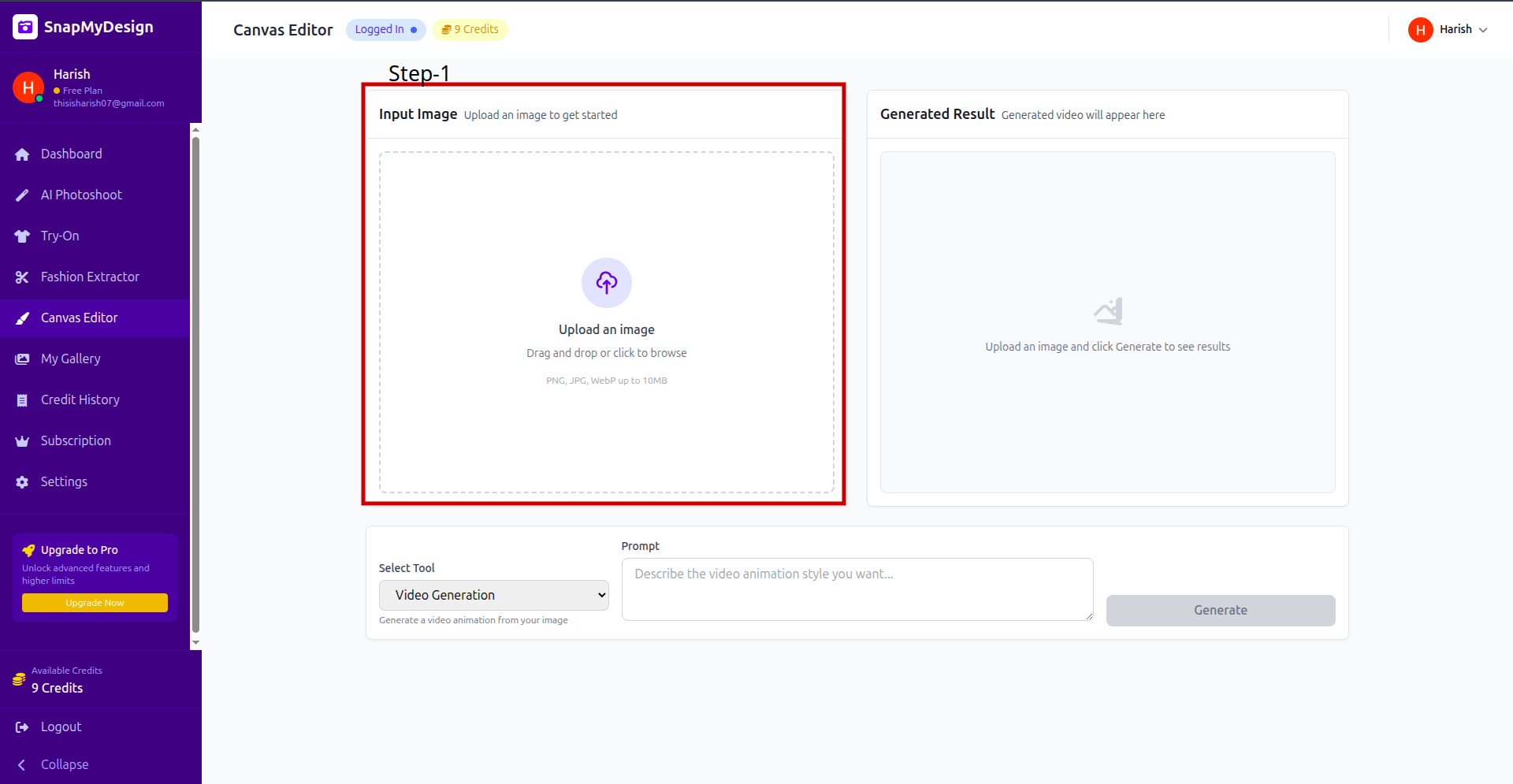
Once your image is uploaded, you're ready to choose your tool and start creating!
Tool #1: 🎥 Video Generation
Turn your static images into captivating, short videos. This tool is perfect for creating eye-catching social media posts, engaging ads, or dynamic product showcases on your website.
How to Generate a Video:
- 📤 Upload Your Image: Start by uploading the image you want to animate.
- 🔧 Select the Tool: From the "Select Tool" dropdown, choose Video Generation.
- ✍️ Write a Prompt: In the prompt box, describe the animation you want to see. You can be simple or descriptive. For example: "Generate a video" or "A slow zoom with a gentle breeze effect."
- ✅ Generate: Check the credit cost, then click the Generate button.
In a few moments, a video version of your image will appear in the "Generated Result" panel, ready to be downloaded and shared with the world.
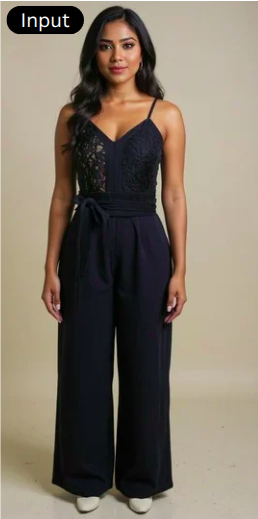
Tool #2: ✨ AI Upscaler
Ever have an image that's almost perfect but just a bit too small or blurry? The AI Upscaler is your solution. It intelligently enhances the resolution and quality of your images, making them sharper, clearer, and ready for high-definition displays or print.
How to Upscale an Image:
- 📤 Upload Your Image: Upload the image that needs a quality boost.
- 🔧 Select the Tool: In the tool selector, choose Upscaler.
- ✅ Generate: You'll notice the prompt box is disabled—the AI handles all the heavy lifting here. Simply click Generate.

🔮 Coming Soon: Background Removal
And we're not stopping there! Soon, you'll be able to instantly remove the background from any image right within the Canvas Editor. This will make creating clean product shots or composite images easier than ever.
❤️ Why You'll Love the Canvas Editor
- 🛍️ One-Stop Shop: No need to jump between different software. Enhance and animate in one place.
- 🎬 Create Dynamic Content: Turn your best images into engaging videos that stop the scroll.
- 🖼️ Professional Quality: Ensure all your images are crisp, clear, and high-resolution.
- ⏱️ Streamlined Workflow: Save time and effort with powerful, easy-to-use AI tools.
Ready to unlock your creative potential? Head over to the Canvas Editor and start exploring!