How to Create a Product Catalogue Using AI (Step-by-Step Guide)
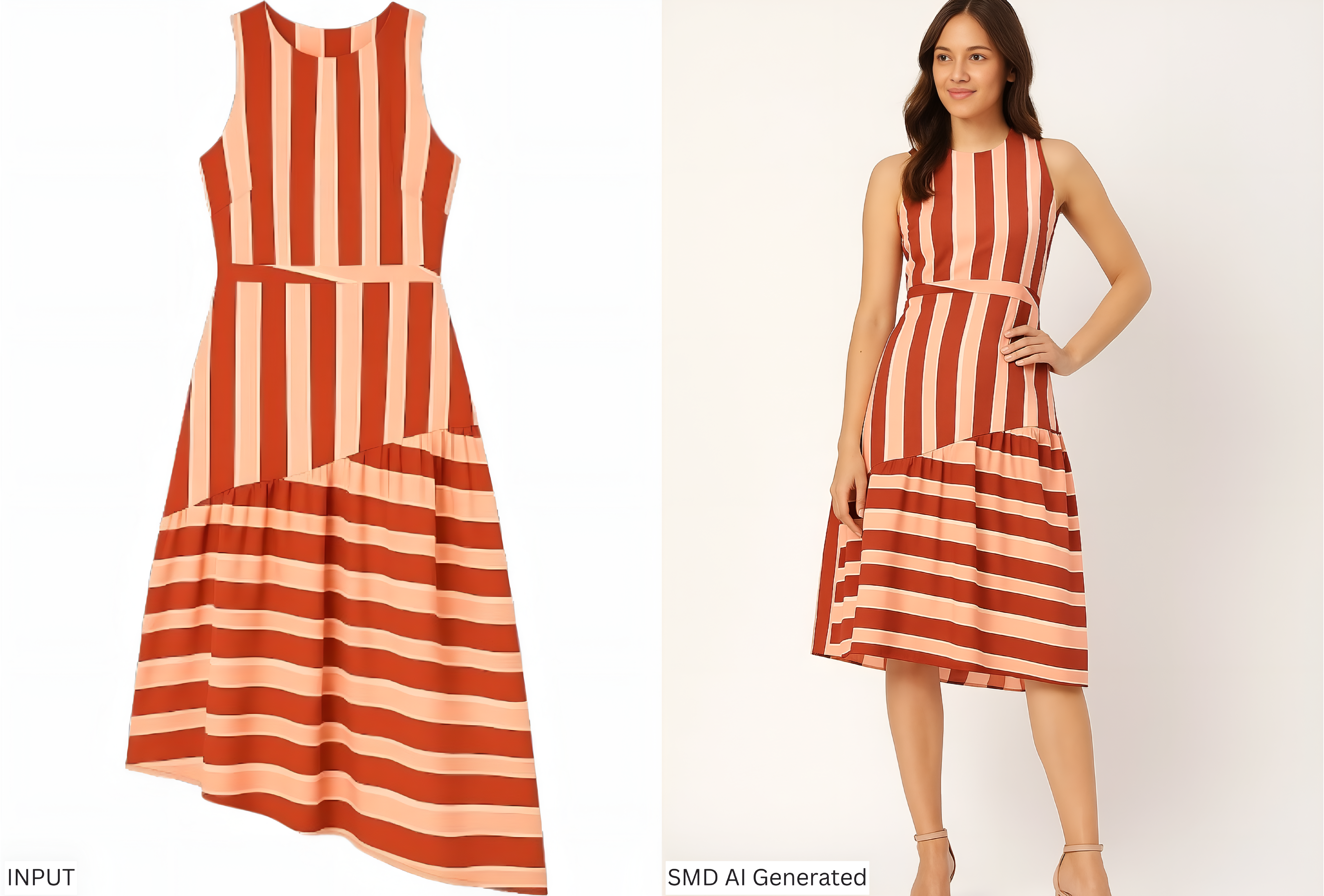
How to Create a Product Catalogue Using AI (Step-by-Step Guide)
In today's fast-moving e-commerce world, every brand needs a professional product catalogue to showcase their products in the best way possible. Whether you sell clothes, accessories, or lifestyle products, your catalogue is often the first impression customers get of your brand. But traditional catalogue shoots can be time-consuming, costly, and logistically challenging.
The good news? With AI-powered tools like SnapMyDesign, you can create high-quality product catalogues in minutes — without models, photographers, or studios.
In this guide, we'll show you how to create a stunning AI product catalogue step by step, while saving time and money.
Why Use AI for Product Catalogues?
Before diving into the "how", let's look at why AI catalogues are a game-changer for D2C brands and e-commerce sellers:
- Cost-Effective → No need to hire photographers, rent studios, or pay models.
- Faster Turnaround → Generate product photos in minutes instead of days or weeks.
- Scalable → Easily create catalogues for hundreds of SKUs.
- Professional Quality → Studio-grade, high-resolution images with consistent style.
- Customization → Change backgrounds, poses, or models with just a click.
Step 1: Collect and Prepare Your Product Images
Start by gathering your product images. You can use:
- Flat-lay photos of your products
- Dummy/mannequin shots
- Basic product photos on neutral backgrounds
Pro Tip: The better the input image, the more realistic your AI-generated catalogue will look. Use high-resolution images with neutral lighting.

Step 2: Upload to SnapMyDesign
- Sign up for SnapMyDesign (it's free to start!)
- Navigate to the AI Photoshoot tool
- Upload your product images
Here, upload your product images — simply drag and drop.
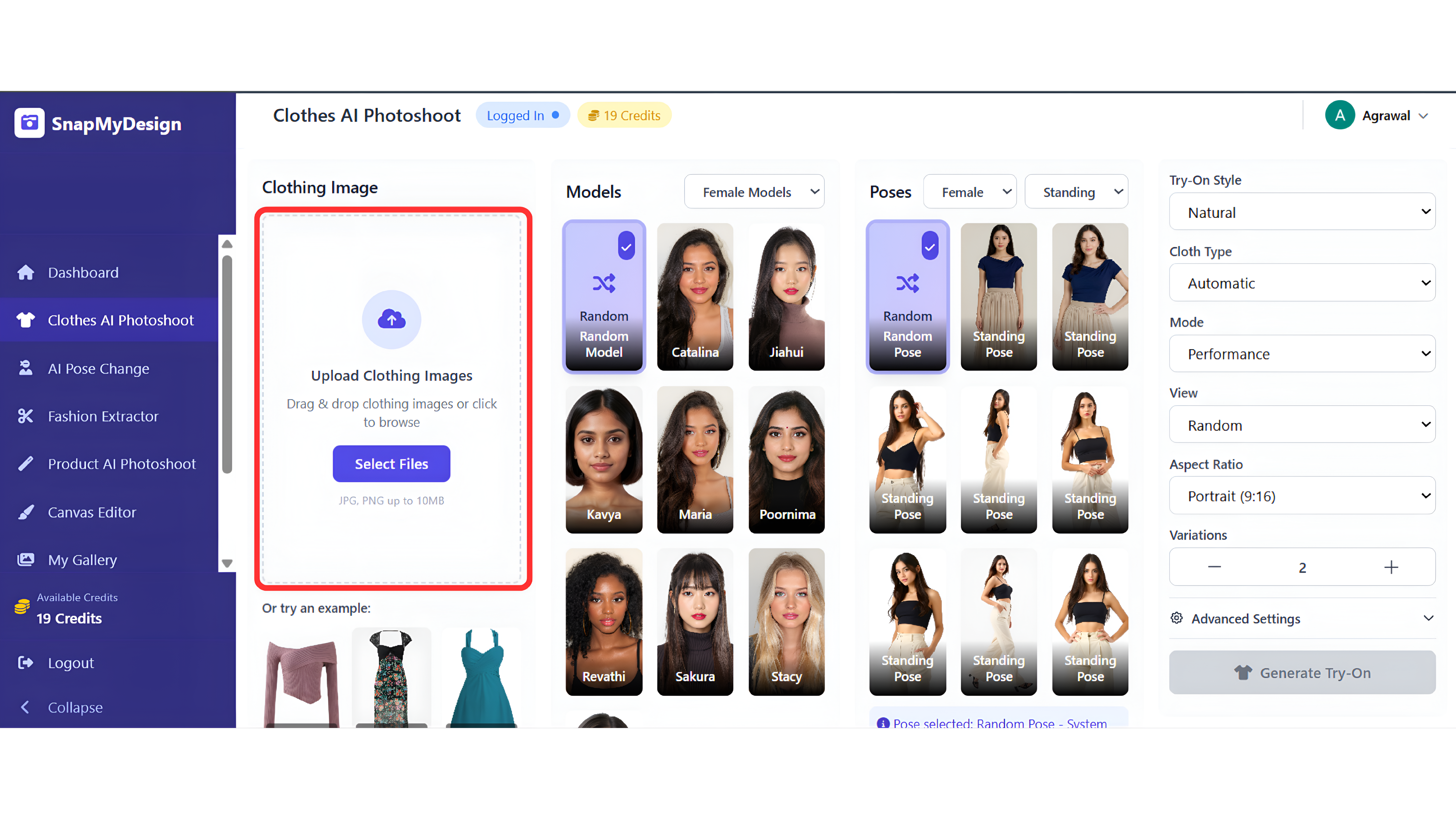
Step 3: Choose Your AI Model and Style
- Select AI Model: Choose from diverse, professional models
- Pick Background: Studio, outdoor, or custom backgrounds
- Set Pose: Standing, sitting, or action poses
- Customize Style: Casual, formal, or seasonal themes
Step 4: Generate Your Catalogue Images
Once you've set your preferences:
- Click Generate and wait for AI to work its magic
- Review Results and select your favorites
- Download high-resolution images
Step 5: Download and Use Your Images
- Download your images in HD or 4K resolution.
- Use them across your website, social media, and marketing materials.
- Create consistent brand imagery that builds trust with customers.
Pro Tips for Better AI Catalogues
- Consistent Input: Use similar lighting and angles for all product photos
- High Resolution: Start with the best quality images possible
- Batch Processing: Upload multiple products at once for efficiency
- A/B Testing: Try different models and backgrounds to see what converts best
Benefits of AI Product Catalogues
- Consistent product imagery (boosts brand trust).
- Faster time-to-market for new collections.
- Cost savings of up to 90% compared to traditional shoots.
- Scalable for any number of products.
- Professional quality without the professional price tag.
Real Results: What You Can Expect
- Generate model images in hours, not weeks
- 90% cost reduction compared to traditional photography
- Professional quality images that boost conversions
- Consistent branding across all product images
Ready to Create Your AI Catalogue?
Creating a professional product catalogue doesn't have to be expensive or time-consuming. With AI tools like SnapMyDesign, you can:
- Save thousands on photography costs
- Launch faster with instant image generation
- Scale easily for any number of products
- Maintain consistency across your entire catalog
Try it today, Sign up on SnapMyDesign.com and generate your first catalogue image for free.